GTA 6 Best PS5 Settings: HDR, 120Hz, Performance, and PS5 Pro
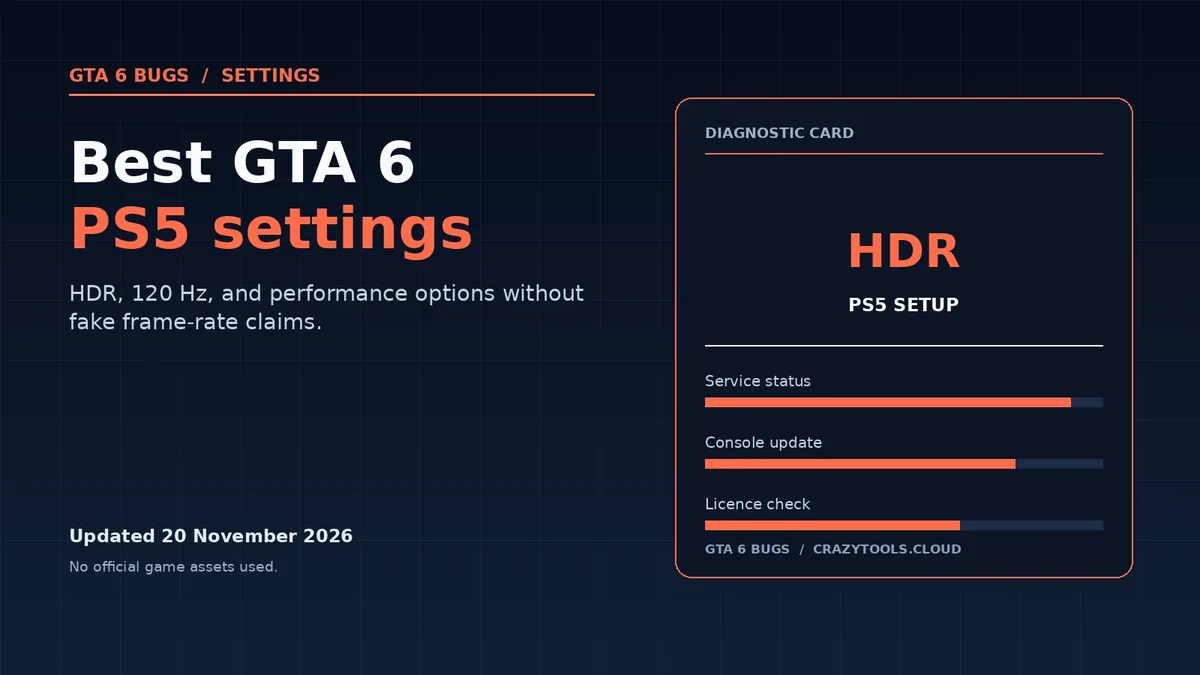
GTA 6 PS5 settings guide: HDR calibration, 120Hz output, VRR, frame drops and the PS5 Pro difference explained.
On this page
- Recommended Baseline
- Know What the Game Is Doing
- Video Output Settings
- Resolution
- 120Hz Output
- VRR
- HDR
- Deep Colour Output
- RGB Range
- HDR Setup
- Audio Settings
- TV Settings
- Storage and Network
- Controller Settings
- Settings to Avoid
- FAQ
- Does GTA 6 have a performance mode on PS5?
- Should I turn 120Hz on or off?
- Is HDR worth it in GTA 6?
- What resolution should I use?
- Why does the game look soft on base PS5?
- Bottom Line
- PS5 frame drops, the 30fps cap, and what actually helps
- PS5 Pro vs base PS5: sharper, not faster
- HDR calibration: why the picture looks washed out
- Sources and verification
- Related guides
GTA 6 does not have a graphics menu with performance and quality modes. The game targets 30fps on PS5 and PS5 Pro, renders at around 1440p internally, and uses ray-traced global illumination and reflections. The PS5 Pro adds ray-traced shadows and a sharper upscale.
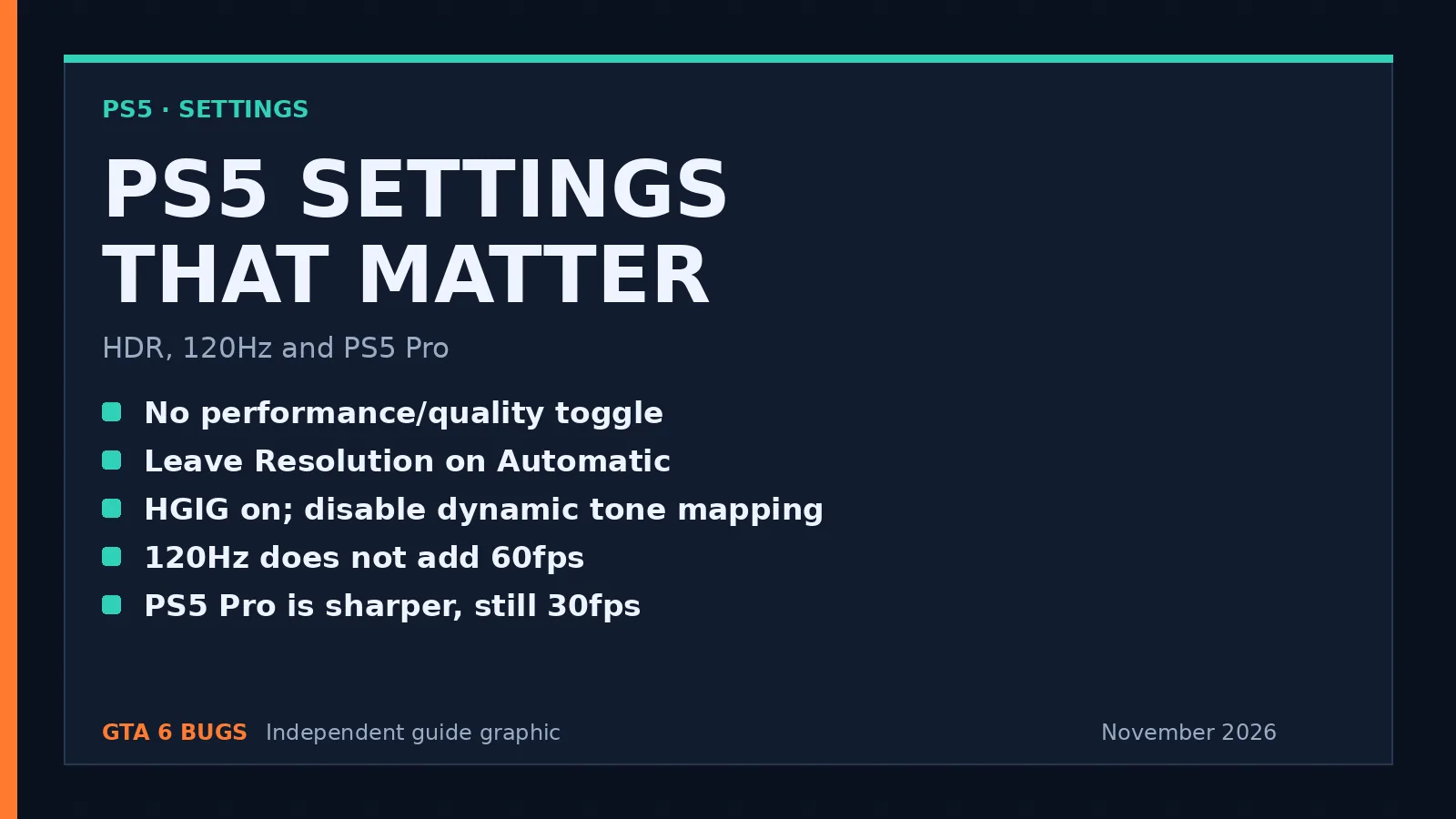
That means the "best" PS5 settings are mostly console and TV settings. The goal is simple: a stable 30fps, correct HDR, low input lag, and no settings that cause crashes or washed-out colour.
Recommended Baseline
Start here, then adjust for your TV:
- Resolution: Automatic.
- 120Hz Output: Off for stability. On only if your TV handles it well and you prefer it.
- VRR: On if your TV supports it. Off if you see flicker.
- HDR: On if your TV is calibrated. Off if the image looks washed out or the game crashes.
- Deep Colour Output: Automatic.
- RGB Range: Automatic. Match your TV's setting if you change it manually.
- Audio: Linear PCM for TV speakers. Dolby Atmos if your receiver supports it.
- TV picture mode: Game Mode.
- Install location: Internal SSD or supported M.2 drive.
Change one setting at a time. Write down what you changed so you can undo it.
For the measured frame-rate behaviour behind these settings, see our GTA 6 FPS drops guide.
Know What the Game Is Doing
- 30fps target. There is no 60fps mode on PS5 or PS5 Pro.
- Around 1440p internal. The console upscales to your display.
- No performance/quality toggle. You cannot trade resolution for frame rate.
- Ray tracing is always on. The Pro adds ray-traced shadows.
- Heavy scenes drop frames. Digital Foundry measured 23fps on base PS5 in an explosion stress test.
If a setting promises "60fps" or "performance mode" for GTA 6, it is not real. The game does not expose one.
Video Output Settings
Resolution
Set Resolution to Automatic. The PS5 will match your TV.
If you have a 4K TV, Automatic usually means 2160p output. If you have a 1080p TV, it means 1080p. Forcing 1080p on a 4K TV can slightly reduce the load on the HDMI chain, but it will not change the game's internal 1440p render. It is a troubleshooting step, not a quality upgrade.
120Hz Output
The game runs at 30fps, so 120Hz output does not make it smoother. It can change how the PS5 negotiates with the TV, and some players report fewer crashes with it off.
- For stability: Off.
- For a 120Hz TV with VRR: Try On and compare. If you see flicker or stutter, turn it off.
Do not expect 120Hz to unlock a higher frame rate. It cannot.
VRR
Variable refresh rate lets the TV match the console's frame rate. It can smooth out small dips, but it cannot fix a sustained drop to 23fps.
- Turn VRR On if your TV supports it.
- Turn it Off if you see brightness flicker or black-frame flashes.
- On some TVs, VRR only works on specific HDMI inputs. Check your TV manual.
HDR
HDR is worth using on a good TV, but it is also a common variable in launch-week crashes.
- On if your TV supports HDR and you have calibrated it.
- Off if the image looks grey, washed out, or the game crashes repeatedly.
- Off if you are using a capture card that does not pass HDR correctly.
If you turn HDR off, the game still looks good. You are not losing a gameplay feature.
Deep Colour Output
Set Deep Colour Output to Automatic. If your TV or receiver has a "Deep Colour," "Enhanced," or "HDMI Ultra HD Deep Colour" setting, turn it on for the input the PS5 uses. Without it, you may be limited to 8-bit colour or a lower bandwidth mode.
RGB Range
Set RGB Range to Automatic first. If blacks look crushed or grey, check your TV's HDMI black level.
- Limited on the PS5 should match Low on the TV.
- Full on the PS5 should match High or Normal on the TV.
A mismatch is the usual cause of a washed-out or too-dark picture.
HDR Setup
- Go to Settings > Screen and Video > Video Output > Adjust HDR.
- Follow the three screens.
- On each screen, adjust until the sun symbol is just barely visible.
- Do not max out the slider. The goal is the point where detail disappears.
- On your TV, use a calibrated picture mode, not Vivid or Dynamic.
- Turn off dynamic contrast and tone mapping tricks that fight the console.
If the HDR image looks dull after this, your TV may be tone-mapping aggressively. Try the TV's "HGIG" mode if it has one, or use the console's HDR calibration again.
If it still looks flat, the problem is the game's in-game sliders, not the PS5 setup. Our GTA 6 HDR calibration fix covers the recommended Max Brightness, Black Levels, and Paper White values.
Audio Settings
- TV speakers: Linear PCM. It is the simplest and avoids compatibility issues.
- Soundbar or AV receiver: Bitstream Dolby or DTS if the device supports it. Use Linear PCM if you hear dropouts.
- Headphones: Enable 3D Audio in Settings > Sound > Audio Output and choose the profile that fits your head.
- HDMI device type: Set it to match your TV or receiver. The wrong type can limit formats.
Audio settings do not affect frame rate. Set them once and leave them.
TV Settings
Use Game Mode on your TV. It turns off most of the processing that adds input lag.
Turn off:
- Motion smoothing / MotionFlow / TruMotion.
- Noise reduction.
- Dynamic contrast.
- Edge enhancement.
- Energy saving or auto brightness.
Keep:
- Game Mode.
- HDR, if calibrated.
- VRR, if supported.
- The correct HDMI black level.
A 30fps game feels much better with low input lag than with a "smooth" TV preset that adds delay.
Storage and Network
- Install GTA 6 on the internal SSD or a supported M.2 drive.
- Do not run it from a USB hard drive.
- Leave free space on the drive. A nearly full SSD can slow installs and updates.
- Use a wired connection for the initial download if you can. GTA 6 is a large game.
- Do not download updates while you are testing frame rate. Background downloads can cause stutter.
Controller Settings
These are personal preference, but they matter for comfort:
- Vibration: On by default. Turn it off if you want a slightly calmer controller.
- Adaptive triggers: On by default. Some players turn them off for competitive shooting.
- Deadzone: Adjust only if you have stick drift. Do not copy someone else's number.
- Camera sensitivity: Raise it slowly. A higher sensitivity helps in busy fights but makes driving harder.
Settings to Avoid
- Vivid or Dynamic TV mode. It oversaturates colours and adds processing.
- Motion smoothing. It makes 30fps look strange and adds input lag.
- Forcing 8K or a resolution your TV does not support. It can cause black screens.
- Manually setting RGB to Full on a TV that expects Limited. It crushes blacks.
- Third-party "FPS boost" apps. They cannot change the game's frame rate.
- A 120Hz output setting you have not tested. Some players report crashes with it on.
FAQ
Does GTA 6 have a performance mode on PS5?
No. Rockstar targets 30fps on PS5 and PS5 Pro. There is no performance or quality toggle.
Should I turn 120Hz on or off?
Off is the safer starting point because the game is 30fps. On is worth testing if your TV supports VRR and you do not see flicker or crashes.
Is HDR worth it in GTA 6?
Yes, on a calibrated TV. The game has strong lighting and colour. If HDR looks washed out or causes crashes, turn it off until you fix the setup.
What resolution should I use?
Automatic. The game renders at around 1440p internally, so forcing a different output resolution does not change the internal image much.
Why does the game look soft on base PS5?
The base PS5 uses a simpler spatial upscale than the PS5 Pro's PSSR. Digital Foundry described the base image as clearly upscaled 1440p. That is the game's presentation, not a setting you can fix.
Bottom Line
Use Automatic resolution, Game Mode on the TV, and a calibrated HDR picture. Start with 120Hz off and VRR on if your TV supports it. Install the game on the internal SSD and keep the console cool.
Do not chase a 60fps mode that does not exist. The best PS5 settings make 30fps look consistent and feel responsive, not faster than the game can run.
PS5 frame drops, the 30fps cap, and what actually helps
GTA 6 targets 30fps on the base PS5. Digital Foundry's launch analysis found the busiest Vice City scenes dipping into the low 20s, and the limit looks CPU-bound rather than fill-rate-bound. That matters because lowering resolution or turning off effects will not recover frames the processor cannot produce.
What helps in practice:
- Leave Resolution on Automatic. GTA 6 has no performance/quality toggle; the console preset controls resolution and effects.
- Turn on 120Hz output only if your TV supports it. It can reduce input latency and judder, but it does not add a 60fps mode.
- Enable VRR if available. VRR smooths uneven frame pacing; it cannot turn a 30fps cap into a 60fps experience.
- Restart the game after a long session. Several players report a fresh launch clears memory-related stutter, especially after heavy traffic or a long session in Vice City.
If the frame rate collapses only in one area, treat it as a scene-specific issue rather than a console fault. Report the location and chapter to Rockstar Support so the next patch can target it.
PS5 Pro vs base PS5: sharper, not faster
The PS5 Pro runs the same 30fps target as the base console. Reported analysis points to a higher dynamic resolution, PSSR upscaling and ray-traced shadows, with a cleaner image and fewer visible reconstruction artefacts. It does not add a 60fps performance mode, and it does not remove the CPU bottleneck in dense scenes.
If you already own a base PS5, the Pro is an image-quality upgrade, not a frame-rate upgrade. If you are choosing between the two for GTA 6, pick the Pro for a sharper 4K image and better shadows, not for competitive frame rates.
HDR calibration: why the picture looks washed out
The in-game HDR sliders can produce a flat, grey image if they are left at defaults. HDTVTest's calibration used a 2,000-nit Peak Brightness setting, Paper White at 35 and a black level around 20 on a reference display; those numbers are a starting point, not a universal preset.
Before changing the sliders:
- Turn on HGIG if your TV supports it, and disable dynamic tone mapping while calibrating.
- Set the TV and console RGB range to match (Auto or Limited on both).
- Re-run the in-game calibration after a TV firmware update or a picture-mode change.
If highlights clip, lower Peak Brightness to your TV's measured peak; if shadows turn grey, raise the black-level slider one step at a time. A calibrated image should keep detail in bright skies and dark interiors at the same time.
Sources and verification
This article draws on public sources and verifiable player reports. It is not a hands-on lab test, and claims that are not officially confirmed are described as reported. Read our editorial policy for how we label, review and correct information.
Last reviewed: November 23, 2026.