GTA 6 Keeps Crashing in the Prologue: PS5 and Xbox Fixes
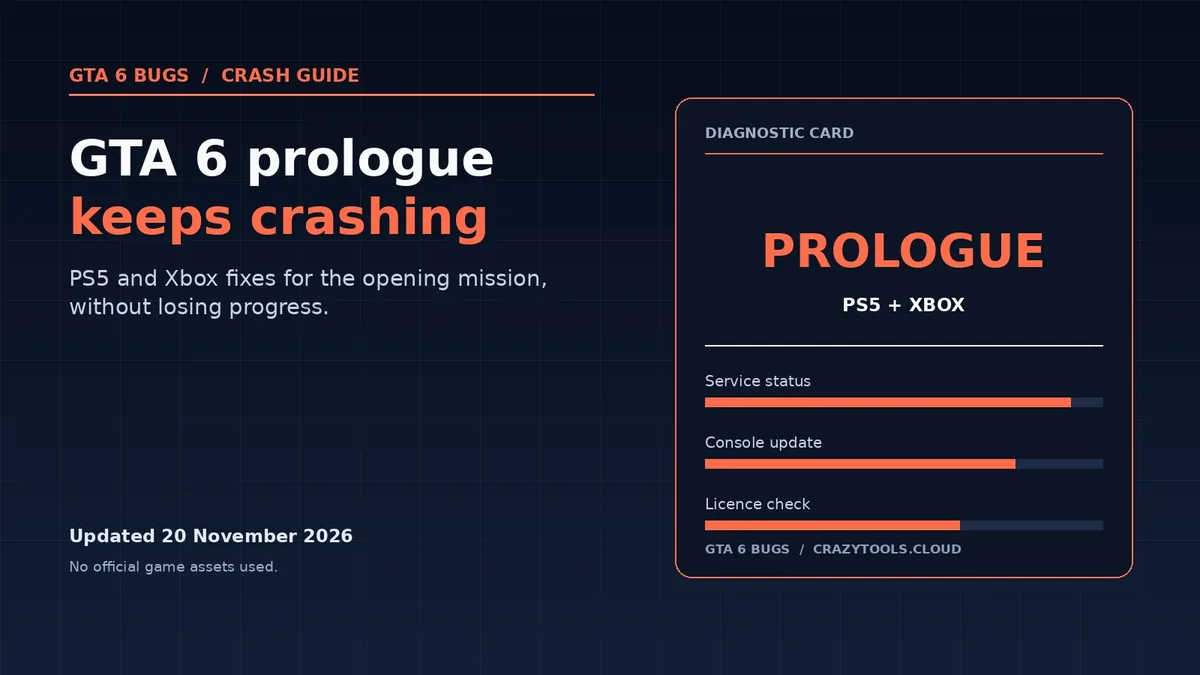
GTA 6 keeps crashing in the prologue? Here is why the opening is autosave-only, the PS5 and Xbox workarounds players are trying, and when to stop replaying.
On this page
- Why the Prologue Crashes Hurt More
- First, Identify the Crash Type
- 1. Update GTA 6 and the Console
- 2. Restart Fully, Not From Rest Mode
- 3. Try the PS5 Display Workaround
- 4. Try the Xbox Display and Storage Workaround
- 5. Test Another Game
- 6. Reinstall Only If the Install Looks Damaged
- 7. Stop Replaying the Same Crash
- Protect Your Progress
- What Not to Do
- FAQ
- Is the prologue crash a GTA 6 bug?
- Does the prologue autosave?
- Will turning off HDR and 120Hz fix it?
- Should I reinstall GTA 6?
- Has Rockstar fixed the prologue crashes?
- Bottom Line
- Sources and verification
GTA 6's prologue is the worst place for a crash. Manual saving is locked, the game runs on autosave only, and the opening takes around 20 to 30 minutes. A crash near the end can send you back to the start of the run.
Players are reporting repeated crashes in the prologue on base PS5, PS5 Slim, PS5 Pro, and Xbox Series X. Some crash every 10 minutes. Some crash at the same scene every time, such as the boat sequence, the intro cutscene, or the first aim prompt. Others get a freeze, then a return to the dashboard. There is no Rockstar-confirmed fix as of November 20, 2026, but there is a sensible order to try.
Why the Prologue Crashes Hurt More
The prologue is autosave only. Save Game is greyed out until the opening ends and free roam begins. If the game closes before that point, the newest autosave may still be an early checkpoint.
That is why one crash can cost the whole run. It is also why you should not quit halfway through the prologue to "test" a fix. Finish it in one sitting if you can, then make a manual save as soon as the option unlocks.
For the save system itself, including where the autosave appears, see our GTA 6 autosave guide.
First, Identify the Crash Type
Three different failures get called "crashing." They need different answers.
- The game closes and shows a PS5 code. Write the code down. CE-108255-1 is the one players report most. Use our GTA 6 PS5 error codes guide.
- The game freezes and returns to the dashboard. This is an application crash. Start with the game and console steps below.
- The whole console shuts off. Stop. This points at power, cooling, or hardware, not just GTA 6. Test another game and contact the console maker if it happens again.
Also note whether the crash is random or at the same scene. A fixed-point crash is more likely to need a patch. A random crash is more likely to involve the install, the console state, or heat.
1. Update GTA 6 and the Console
- On PS5, highlight GTA 6, press Options, and choose Check for Update.
- On Xbox, highlight the game, press Menu, and choose Manage game and add-ons > Updates.
- Install the PS5 firmware 26.07-14.23.00 if you have not already. Sony says it is required for GTA 6.
- Restart the console after the updates finish.
A pending update or an old console build is the first thing to rule out. It is not a guaranteed fix, but it costs nothing and matches the official advice.
2. Restart Fully, Not From Rest Mode
A full restart clears more temporary state than waking the console.
PS5:
- Close GTA 6 completely.
- Turn off the PS5.
- Turn it back on.
- Launch the game from the home screen.
Do not use rest mode and call it a restart.
Xbox:
- Press the Xbox button.
- Highlight GTA 6, press Menu, and choose Quit.
- Open Quick Resume and remove GTA 6 if it is listed.
- Hold the Xbox button on the console for about 10 seconds until it powers off.
- Unplug it for a minute, plug it back in, and start the game fresh.
A suspended session from before an update is a common cause of weird launch behaviour on Xbox. Starting fresh removes that variable.
3. Try the PS5 Display Workaround
One PS5 Slim owner reported crashes about every 10 minutes in the prologue. They said the crashes stopped after turning off HDR and 120Hz, forcing 1080p output, clearing the cache, rebuilding the database twice, and installing the latest update. Other players in the same thread still crashed, so treat this as a workaround, not a cure.
- Go to Settings > Screen and Video > Video Output.
- Turn HDR off.
- Turn 120Hz Output off.
- Set Resolution to 1080p.
- Turn the PS5 off completely.
- Hold the power button until the second beep.
- Connect the controller by USB and press the PS button.
- Choose Clear Cache and Rebuild Database.
- Run Clear System Software Cache, then Rebuild Database.
- Restart and try the prologue again.
Change one setting at a time if you want to know which one mattered. Write down the original values so you can put them back.
4. Try the Xbox Display and Storage Workaround
For Xbox Series X|S:
- Go to Settings > General > TV & display options.
- Set Refresh rate to 60Hz.
- Open Video modes and untick Allow variable refresh rate.
- Turn HDR off for the test.
- Go to Settings > Devices & connections > Blu-ray > Persistent storage and choose Clear. This does not delete saves.
- Power cycle the console and try again.
Some players say the cheaper Series S runs the game more steadily than the Series X. That is not a rule, and it does not prove the Series X is faulty. It does show that the crash pattern is inconsistent.
5. Test Another Game
Play a different game for 15 to 20 minutes.
- Only GTA 6 crashes: focus on the game, its install, and its settings.
- Other games crash too: focus on the console, storage, or cooling.
- The console shuts off: stop and contact PlayStation or Xbox support.
This one test prevents you from reinstalling a 200 GB game when the real problem is a failing console.
6. Reinstall Only If the Install Looks Damaged
Reinstalling is a last step, not a first one. It means another very large download, and it is not guaranteed to fix a prologue crash.
If you try it:
- Delete the GTA 6 application, not your saved data.
- Reinstall to the internal SSD or a supported expansion drive.
- Keep the console on during the install.
- Do not launch the game until it finishes.
On PS5, check the install code first. CE-100095-5 and CE-107891-6 both point at install problems and have official reinstall steps.
7. Stop Replaying the Same Crash
If GTA 6 crashes at the exact same scene every time, replaying it dozens of times will not tell support anything new. Report it instead.
Send Rockstar:
- The platform and model.
- The GTA 6 version.
- The exact scene or mission step.
- Whether you skipped a cutscene.
- The error code, if there is one.
- Whether the console shut off or only the game closed.
- What you have already tried.
A short video of the crash is more useful than a paragraph saying "it keeps crashing."
Protect Your Progress
- Play the prologue in one sitting if you can.
- Do not quit mid-prologue to test a setting unless you are ready to replay it.
- Make a manual save as soon as free roam unlocks.
- Keep cloud saves on. PS5 cloud saves need PlayStation Plus; Xbox cloud saves are automatic.
- After the prologue, save manually after every mission. The autosave slot is not a backup.
What Not to Do
- Do not factory reset the console first.
- Do not delete your saves to test the crash.
- Do not open the console or replace thermal paste.
- Do not install GTA 6 on a USB hard drive.
- Do not use third-party "boost" or "repair" software.
- Do not believe an unconfirmed patch date. Check Rockstar's official channels.
- Do not keep replaying a fixed-point crash without reporting it.
FAQ
Is the prologue crash a GTA 6 bug?
Some of it is. Players on multiple console models report the same early crashes, and Rockstar has not published a fix. But a console that shuts off, overheats, or fails other games is a separate problem.
Does the prologue autosave?
Yes, but only on its own checkpoints. Manual saving is locked during the prologue. If the game crashes, you may lose the whole run.
Will turning off HDR and 120Hz fix it?
It helped at least one PS5 Slim owner who also cleared the cache, rebuilt the database twice, and updated the game. Other players still crashed. Try it as a reversible test, not a guaranteed fix.
Should I reinstall GTA 6?
Only after updates, a full restart, and a second-game test. If the install is damaged or a code points at the install, reinstall makes sense. If the console shuts off, a reinstall will not help.
Has Rockstar fixed the prologue crashes?
Rockstar has not announced a prologue-specific patch. Its support page still sends console errors to PlayStation and Xbox support. Check the game's update history before you assume a fix has shipped.
Bottom Line
Update the game and console, restart fully, and try the display workarounds one at a time. Test another game before you reinstall. If GTA 6 crashes at the same scene every time, report the exact scene and stop replaying it.
The prologue is autosave only, so protect the run: play it in one sitting, then make a manual save the moment free roam begins.
Sources and verification
This article draws on public sources and verifiable player reports. It is not a hands-on lab test, and claims that are not officially confirmed are described as reported. Read our editorial policy for how we label, review and correct information.
Last reviewed: November 23, 2026.