GTA 6 Won't Launch or Stuck Loading: PS5 and Xbox Fixes
GTA 6 won't launch or is stuck on a black screen? Fix the required update, clear cache, rebuild the PS5 database and check Xbox storage.
On this page
- 1. Install the Required PS5 Update
- 2. Update GTA 6 Itself
- 3. Check That the Install Finished
- 4. Check PSN and Restore Licenses
- 5. Turn On Console Sharing and Offline Play
- 6. Check Storage and Install Location
- 7. Restart Properly, Then Rebuild the Database
- 8. Reinstall GTA 6 as a Last Step
- If the PS5 Shows an Error Code
- What Not to Do
- When to Contact PlayStation or Rockstar
- FAQ
- Why won't GTA 6 launch on PS5 even after the update?
- Is the PS5 firmware update really required?
- Does reinstalling GTA 6 delete my progress?
- Can I play GTA 6 offline?
- Why does the store ask me to buy GTA 6 again?
- Bottom Line
- Stuck loading and black screens
- Sources and verification
GTA 6 is out, but some PS5 players still cannot get past the start. The game may sit on the home screen, bounce back to the dashboard, or show a message that it cannot start. In most cases the cause is one of five things: a missing PS5 firmware update, an unfinished game update, a licence check, a partial install, or the wrong storage.
This guide follows the order Sony and Rockstar support pages use. Start at the top. Do not delete the game first.
1. Install the Required PS5 Update
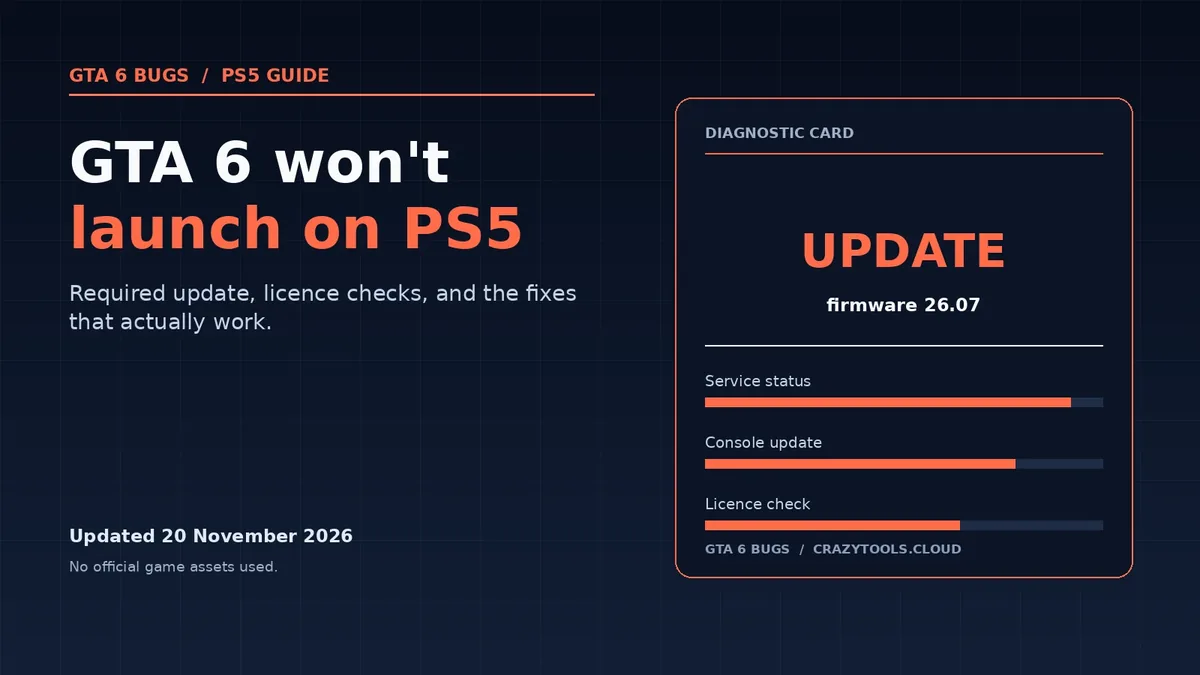
Sony released PS5 system software 26.07-14.23.00 on November 17, 2026. PlayStation Support said the update is required before playing Grand Theft Auto VI, and Rockstar reposted the message. IGN reported that the update is about 1.267 GB and that Sony's patch notes mention security fixes.
If you skipped it, GTA 6 can fail before the title screen.
- Open Settings on the PS5 home screen.
- Select System.
- Select System Software.
- Select System Software Update and Settings.
- Select Update System Software.
- Choose Update Using Internet.
- Let the console restart when it finishes.
Do not put the console in rest mode during the update. If the download stalls, restart the router and try again.
2. Update GTA 6 Itself
Rockstar shipped more than one pre-launch update. The PS5 build 01.002.001 was about 602 MB, after an earlier update of about 1 GB on November 13. The Xbox build was larger. A pending update can stop the game from opening, especially if the console downloaded it but did not install it.
- Highlight GTA 6 on the PS5 home screen.
- Press the Options button on the controller.
- Choose Check for Update.
- Install anything that appears.
- Restart the console after the install.
If the game says it is up to date but still will not open, move on.
3. Check That the Install Finished
A preload can look finished on the dashboard while it is still unpacking or waiting on a piece. GTA 6 needs up to 212 GB of free space depending on the console, so a download that stopped partway is a common cause.
- Highlight GTA 6.
- Press Options.
- Choose Information.
- Check Download Status and the installed size.
If the status is not complete, let it finish. Do not launch the game while it is still installing.
4. Check PSN and Restore Licenses
A licence check can fail even when you own the game. This is more likely during a busy launch window, when PlayStation Network sign-in is under load. On November 18, thousands of players reported PSN sign-in problems around GTA 6's launch.
- Check the PlayStation Network status page.
- If PSN is down, wait. Do not change console settings during an outage.
- If PSN is up, go to Settings > Users and Accounts > Other > Restore Licenses.
- Restart the console and try GTA 6 again.
Restoring licenses does not delete your saves or your games.
5. Turn On Console Sharing and Offline Play
If your console cannot reach PSN, a digital game may refuse to start even though it is installed. Sony's GTA VI support page points players to Console Sharing and Offline Play for shared consoles.
- Go to Settings > Users and Accounts > Other.
- Select Console Sharing and Offline Play.
- Select Enable.
Turn this on while your connection is working. You cannot enable it during an outage. After the first successful online launch, the setting can let the story start when the network is down.
6. Check Storage and Install Location
GTA 6 should run from the internal SSD or a supported M.2 expansion drive. A USB hard drive is not a supported install location for a game this size.
- Go to Settings > Storage.
- Check how much free space is left.
- If GTA 6 is on USB extended storage, move it to the console storage or M.2 drive.
- If the drive is nearly full, delete a game you are not playing.
Leave more free space than the install size. A drive with almost no room left can fail during an update.
7. Restart Properly, Then Rebuild the Database
- Close GTA 6 completely.
- Turn off the PS5. Do not choose rest mode.
- Turn it back on.
- Try the game once.
If it still will not start, use Safe Mode:
- Turn the PS5 off completely.
- Hold the power button until you hear the second beep.
- Connect the controller with a USB cable.
- Press the PS button.
- Choose Clear Cache and Rebuild Database.
- Start with Clear System Software Cache.
- If that fails, run Rebuild Database.
Do not choose Reset PS5 or Reset PS5 (Reinstall System Software) unless you have backed up your data. Those options can erase the console.
8. Reinstall GTA 6 as a Last Step
If the install is damaged, delete the game and download it again.
- Highlight GTA 6, press Options, and choose Delete.
- Reinstall from your Game Library or the disc.
- Keep the console powered on during the install.
- Do not use rest mode until it finishes.
Deleting the game does not delete your saved data. Back up your saves first if you can.
If the PS5 Shows an Error Code
A "cannot start" message often comes with a code. Use our GTA 6 PS5 error codes guide to match the code to the right fix.
Two codes matter most here:
- CE-100095-5 means there was an issue starting the application. Sony says to delete and reinstall the game, and keep the console on while it installs.
- CE-107891-6 means content is not installing properly. Sony says to delete the game from storage and reinstall it.
Do not reinstall a third time without reading the code. The code tells you whether the problem is the install, the console software, or the network.
What Not to Do
- Do not factory reset the PS5 first.
- Do not delete your saves to test the game.
- Do not buy GTA 6 again on another account.
- Do not install the game on a USB hard drive.
- Do not launch the game during an update.
- Do not use third-party "repair" tools.
- Do not assume the game is broken if PSN is down.
When to Contact PlayStation or Rockstar
Contact PlayStation Support if the console will not install the firmware, PSN sign-in fails on every device, or the store says you do not own a game you bought.
Contact Rockstar Support if only GTA 6 fails to launch and the console runs other games normally. Include:
- Your PS5 model.
- Whether the game is disc or digital.
- Your PS5 firmware version.
- The GTA 6 version shown on your console.
- The exact error message or code.
- What you have already tried.
Do not send your PSN password or payment details.
FAQ
Why won't GTA 6 launch on PS5 even after the update?
The update is only one check. The game also needs a complete install, a valid licence, and a working PSN connection for the first launch. Work through the list above in order.
Is the PS5 firmware update really required?
Yes. PlayStation Support said version 26.07-14.23.00 is required before playing GTA 6, and Rockstar shared the message.
Does reinstalling GTA 6 delete my progress?
No. Deleting the application does not delete your saved data. Back up your saves before any storage work.
Can I play GTA 6 offline?
GTA 6 is a single-player game, and the PlayStation Store lists offline play. Turn on Console Sharing and Offline Play while you are online so the console can start the game later without a licence check.
Why does the store ask me to buy GTA 6 again?
You are probably signed in to a different account, or the licence check failed. Sign in with the account that bought the game and restore licenses. Do not buy it twice.
Bottom Line
Install PS5 firmware 26.07-14.23.00 first. Then update GTA 6, let the install finish, check PSN, restore licenses, and confirm the game is on internal storage. Restart the console before you rebuild the database, and reinstall only after the simpler checks fail.
If the console shows a code, read the code before you delete anything. The fix for a licence error is not the same as the fix for a damaged install.
Stuck loading and black screens
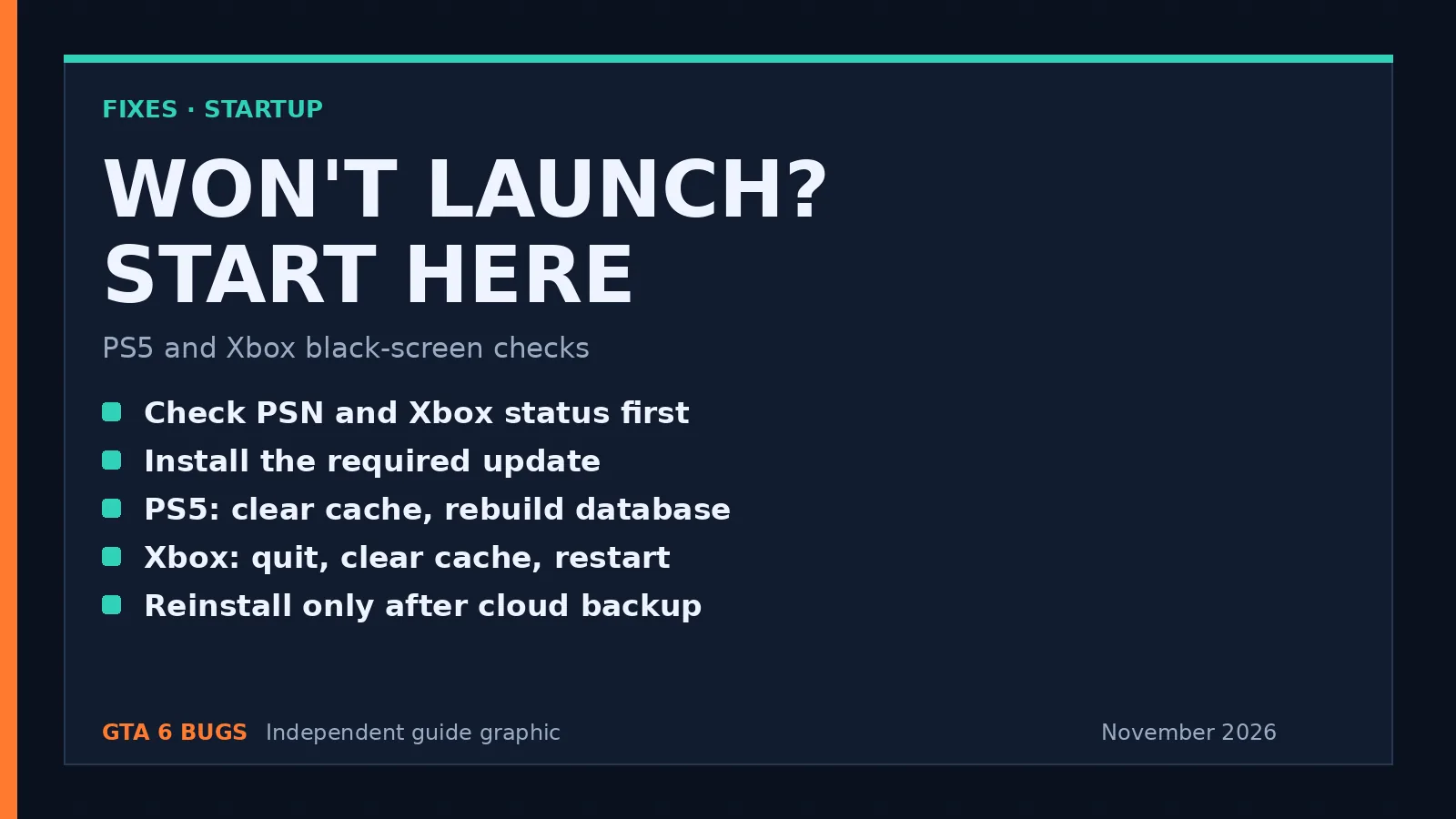
A black screen after the Rockstar logo is usually a local cache or storage problem, not a server outage. Check the PlayStation Network and Xbox status pages first, then try the platform-specific steps below.
- PS5: close the game, clear the console cache, then rebuild the database from Safe Mode. Do not choose "Reset Console" or delete your save.
- Xbox: quit the game from the dashboard, clear the local saved data cache, and restart the console. If the game is on an external drive, move it to internal storage and retry.
- Both: reinstall only after confirming your save is in the cloud. A corrupted install can survive a cache clear.
If the console freezes during the rebuild, stop and contact platform support rather than repeating the process.
Sources and verification
This article draws on public sources and verifiable player reports. It is not a hands-on lab test, and claims that are not officially confirmed are described as reported. Read our editorial policy for how we label, review and correct information.
Last reviewed: November 23, 2026.