GTA 6 Best Xbox Settings: HDR, 120Hz, Series S, and Performance
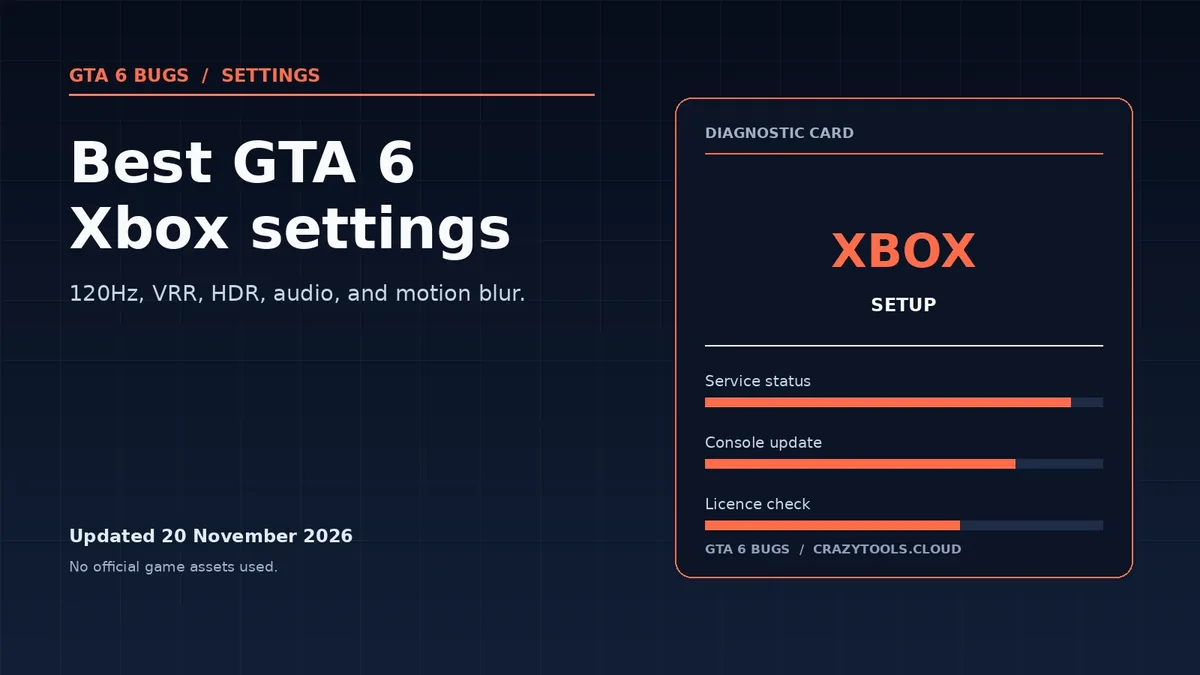
GTA 6 Xbox settings for Series X and Series S: HDR, 120Hz, the 30fps cap, and the Quick Resume frame-rate glitch explained.
On this page
- What are the best Xbox settings for GTA 6?
- Should you use 120Hz on Xbox?
- How should you set up HDR?
- What is the best motion blur setting?
- How do you fix Xbox audio crackling in GTA 6?
- Should you disable Quick Resume for GTA 6?
- What resolution should Series S owners choose?
- What about the Xbox guide and notifications?
- Should you install GTA 6 on an expansion card?
- Is there a performance mode on Xbox?
- FAQ
- Does GTA 6 run at 60fps on Xbox Series X?
- Is 120Hz better for GTA 6?
- Should HDR be on or off?
- Does motion blur help performance?
- Bottom line
- Xbox Series S vs Series X: resolution, not frame rate
- Quick Resume and the unlocked frame-rate glitch
- Sources and verification
- Related guides
GTA 6 does not have a deep graphics menu on Xbox. The big decisions happen at the console and TV level: refresh rate, VRR, HDR, audio, and whether Quick Resume is helping or hurting. This guide gives a practical setup for Series X and Series S, explains what each setting actually does, and flags the options that are not worth changing.
What are the best Xbox settings for GTA 6?
Start with this baseline, then adjust for your TV:
- Refresh rate: 120 Hz if your TV supports it.
- VRR: On.
- Resolution: 4K on Series X, 1080p or 1440p on Series S depending on your TV.
- HDR: On only after calibration.
- Audio: Stereo uncompressed for headsets.
- Quick Resume: Off for GTA 6 if you see audio or black-screen bugs.
- In-game motion blur: 3/10 default; lower for clarity, higher for smoothness.
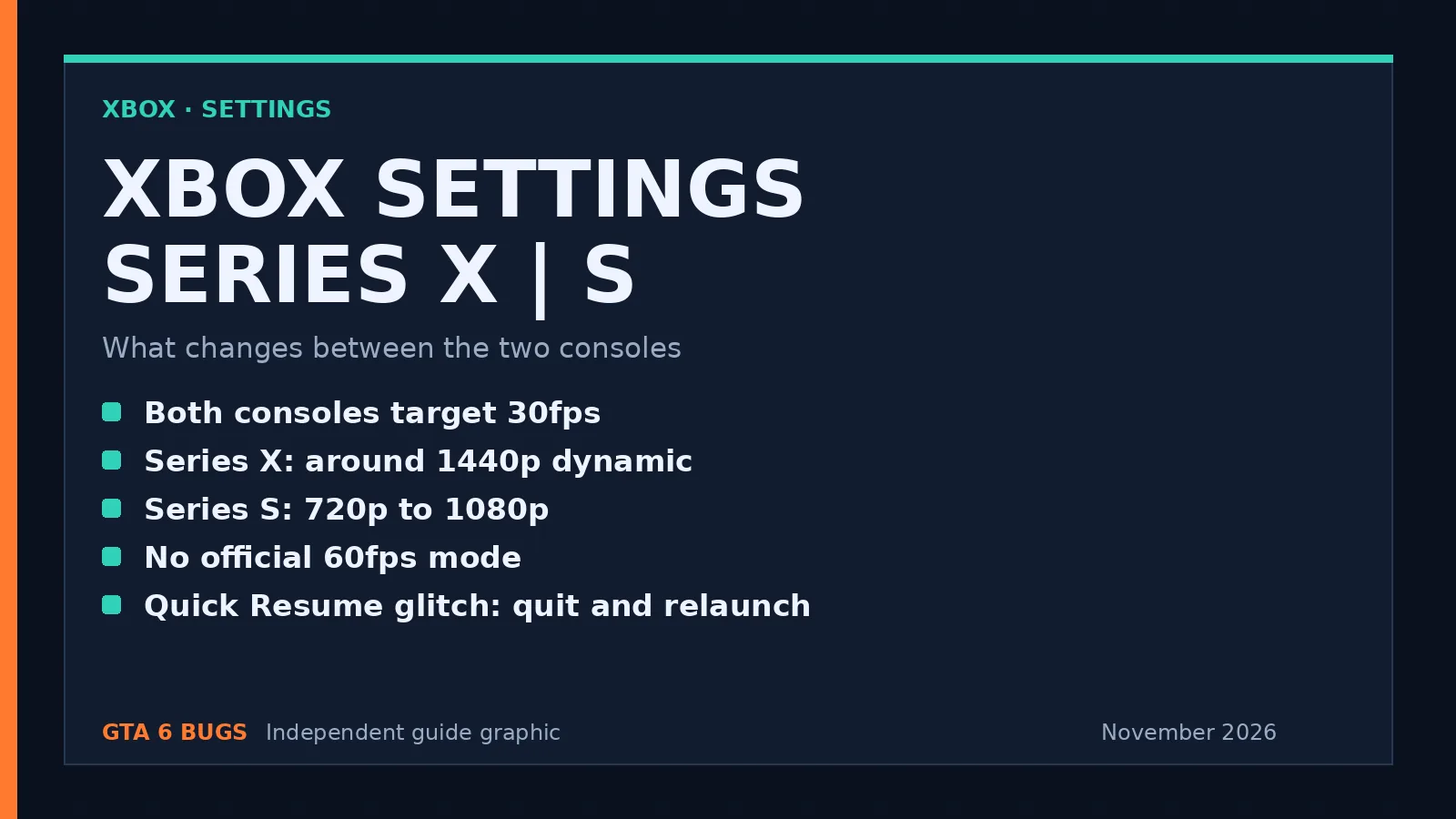
The game targets 30fps on both consoles. No combination of settings unlocks 60fps. The goal is consistent frame pacing and a clean image, not a higher frame-rate cap.
Should you use 120Hz on Xbox?
Yes, if your TV supports 120Hz and VRR. The game runs in a 120Hz container, which can reduce judder when the frame rate dips below 30fps. It does not make the game run at 120fps.
If your TV supports 120Hz but not VRR, test both modes. Some TVs handle a 30fps game better at 60Hz. A 120Hz container without VRR can make the frame pacing look worse.
To set it:
- Open Settings > General > TV & display options.
- Select Refresh rate and choose 120 Hz.
- Open Video modes and enable Allow 4K and Allow HDR10 if your TV supports them.
- Enable Variable refresh rate if your TV supports VRR.
- Launch GTA 6 and play a busy street scene.
If the image flickers or the TV loses signal, drop back to 60Hz. A stable 60Hz signal is better than an unstable 120Hz one.
How should you set up HDR?
HDR can make GTA 6's neon and sunset scenes look great, but a bad calibration crushes shadows and washes out highlights. Use the Xbox HDR calibration tool, then check the in-game brightness.
- Open Settings > General > TV & display options > Calibrate HDR.
- Follow the on-screen steps until the patterns are barely visible.
- Launch GTA 6.
- Open the game's Settings > Display and adjust brightness only if the image looks washed out or too dark.
- Avoid turning on your TV's dynamic contrast or extra processing modes.
If your TV has a “game HDR” mode, use it. If HDR looks worse than SDR, turn HDR off for this game. A good SDR image is better than a bad HDR one.
If HDR still looks washed out after the Xbox calibration, GTA 6's in-game sliders are the culprit. See our GTA 6 HDR calibration fix for the values HDTVTest recommends.
What is the best motion blur setting?
Motion blur is one of the few in-game visual options that makes a real difference. The default is 3/10. It softens camera movement and can make 30fps feel smoother.
- Lower it to 0-2 if you want a clearer image and do not mind a little judder.
- Keep it at 3-5 for a smoother feel during driving.
- Raise it above 5 only if you are sensitive to frame pacing and do not mind the softness.
Motion blur does not fix frame drops. It hides them. If you play competitively or take a lot of screenshots, lower it.
How do you fix Xbox audio crackling in GTA 6?
The most common Xbox audio fix is the headset format.
- Open Settings > General > Volume & audio output.
- Select Headset audio.
- Set Headset format to Stereo uncompressed.
- If you use TV speakers, set Speaker audio to Stereo uncompressed for a test.
- Disable Windows Sonic, Dolby Atmos, or DTS Headphone:X if the crackle continues.
If the audio improves, you can try spatial audio again later. Change one setting at a time. For a full walkthrough, see our GTA 6 audio crackling guide.
Should you disable Quick Resume for GTA 6?
If you see a black screen, no sound, or a frozen loading screen after resuming, yes. Quick Resume can leave the game in a suspended state that the console's audio and video systems no longer match.
To quit the game properly:
- Press the Xbox button.
- Highlight GTA 6.
- Press Menu and choose Quit.
- Launch the game from the dashboard.
You can also disable Quick Resume for the game in its compatibility options. The exact menu label varies by dashboard version, but the goal is to stop the game from resuming automatically.
The separate Xbox Quick Resume 60fps glitch is not a fix for this problem. It unlocks the frame rate and makes the game run too fast. It is not a stable performance mode.
What resolution should Series S owners choose?
The Series S renders GTA 6 at 720p internally and upscales to roughly 1080p. If you have a 1080p TV, set the console to 1080p and let the game handle the upscale. If you have a 1440p or 4K TV, you can leave the console at its highest supported resolution, but the image will still be soft.
Do not set the console to 720p to “match” the game. The console's upscaler is better than a forced low-resolution output, and the UI will look sharper at a higher output resolution.
What about the Xbox guide and notifications?
Notifications can pull you out of the game and cause a frame hitch. If you are recording or playing a long mission, turn on Do not disturb.
- Press the Xbox button.
- Open Settings > Preferences > Notifications.
- Disable pop-up notifications for achievements and messages during play.
- Use Do not disturb when you need a clean session.
This does not improve performance directly, but it avoids interruptions during cutscenes and races.
Should you install GTA 6 on an expansion card?
You can run GTA 6 from the internal SSD or an official Storage Expansion Card. A USB drive can store the game but cannot run it. If the game is on an expansion card and you see stutters, move it to the internal SSD for a test.
For storage requirements, see our GTA 6 storage guide.
Is there a performance mode on Xbox?
No. GTA 6 does not offer a 60fps performance mode on Xbox Series X or Series S. The game targets 30fps, and the console settings change the presentation, not the frame-rate cap.
If a menu option promises “performance,” check what it actually changes. It may adjust motion blur, resolution, or effects, but it will not unlock 60fps. Do not spend hours testing combinations that cannot change the cap.
FAQ
Does GTA 6 run at 60fps on Xbox Series X?
No. The game targets 30fps on both Series S and Series X.
Is 120Hz better for GTA 6?
It can be, if your TV supports VRR. The game still runs at 30fps, but the 120Hz container can reduce judder.
Should HDR be on or off?
On, if your TV is calibrated and the image looks natural. Off, if HDR washes out the picture or crushes shadows.
Does motion blur help performance?
No. It changes the look of motion, not the frame rate.
Bottom line
Set the Xbox to 120Hz with VRR if your TV supports it, calibrate HDR, and use Stereo uncompressed for headsets. Lower motion blur for a clearer image, and disable Quick Resume if you see audio or black-screen bugs. The game is still 30fps, so focus on consistency rather than chasing a mode that does not exist.
Xbox Series S vs Series X: resolution, not frame rate
Both consoles target 30fps. The Series X renders at a higher dynamic resolution, reported around 1440p, while the Series S drops to a 720p-1080p range with reduced texture detail and draw distance. The Series S version is playable, but the image is softer and pop-in is more visible in dense traffic.
There is no 60fps mode on either console. If a menu or a display setting claims otherwise, it is not an official performance mode.
Quick Resume and the unlocked frame-rate glitch
Players report that resuming GTA 6 from Quick Resume can leave the frame rate unlocked. The game then runs faster than intended, which affects timers, traffic and physics. It is not a free performance upgrade.
To clear it, quit GTA 6 completely from the Xbox dashboard and relaunch. Avoid relying on Quick Resume during missions or timed activities until Rockstar patches the behaviour.
Sources and verification
This article draws on public sources and verifiable player reports. It is not a hands-on lab test, and claims that are not officially confirmed are described as reported. Read our editorial policy for how we label, review and correct information.
Last reviewed: November 23, 2026.